
Documentation Index
Fetch the complete documentation index at: https://docs.evergreens.ai/llms.txt
Use this file to discover all available pages before exploring further.

What Are Personas?
Personas let you see how AI platforms answer the same question from different user perspectives. Instead of just asking “What’s the best CRM software?”, you can ask it as a small business owner, an enterprise manager, or a startup founder - and see how the recommendations change.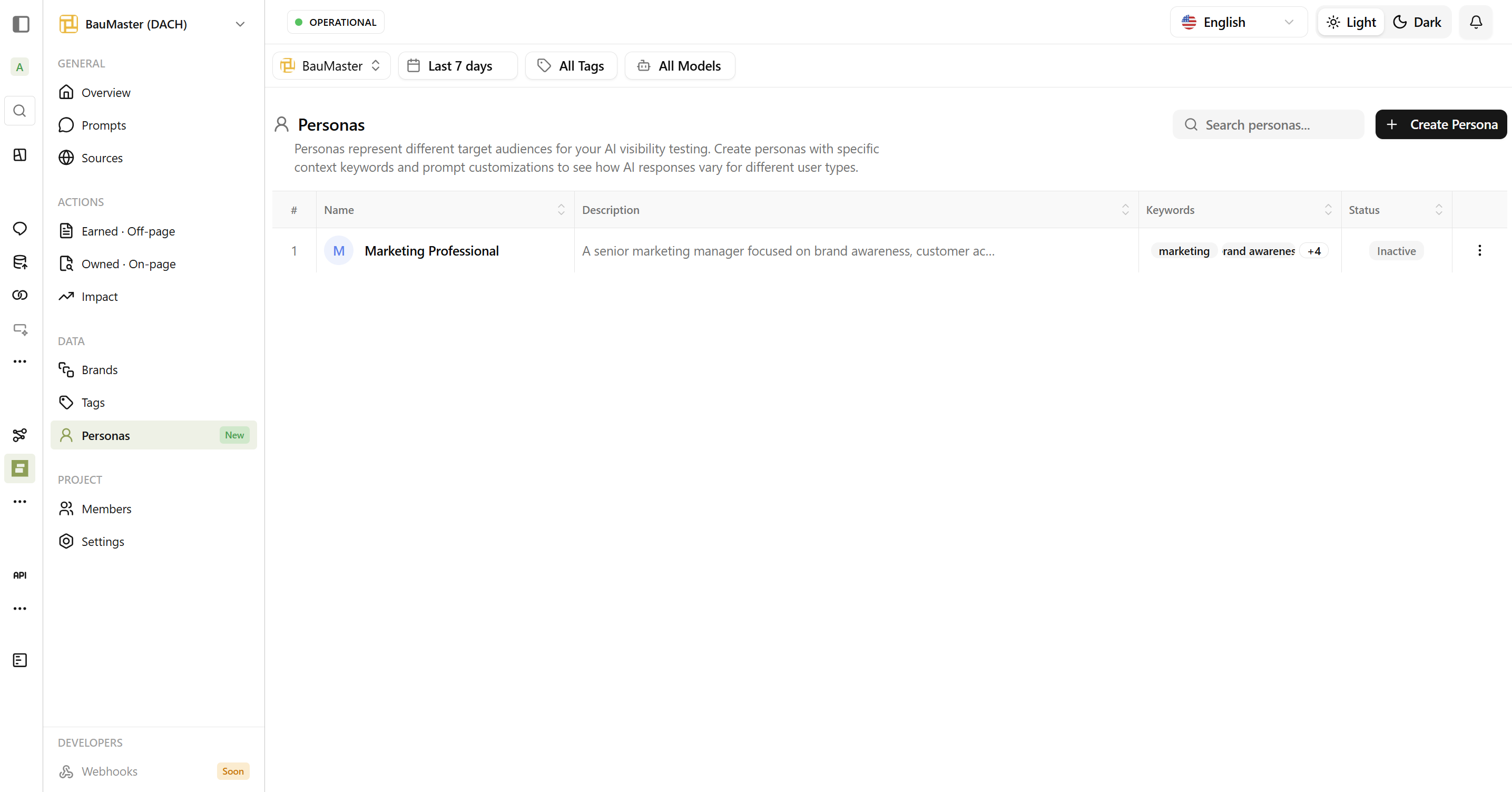
Think of it this way: When you search Google, everyone sees similar results. But AI assistants like ChatGPT, Perplexity, and Gemini personalize their answers based on who’s asking. A student asking about laptops gets different recommendations than a professional video editor.
Why Use Personas?
Find Your Blind Spots
Your brand might appear when enterprise customers ask questions, but disappear when small businesses ask the same thing. Personas reveal these gaps.
Discover Segment Opportunities
Maybe competitors dominate with “IT managers” but you’re winning with “startup founders”. Personas help you identify where to focus.
Optimize Your Content
When you see how AI describes your product to different user types, you can adjust your messaging to better match each audience.
Track Competitor Positioning
See which competitors AI recommends to different user segments. Learn who’s positioned for enterprise vs. small business.
Consider the Tradeoffs
| Setup | Daily Chats |
|---|---|
| 10 prompts × 1 persona × 6 platforms | 60 chats |
| 10 prompts × 3 personas × 6 platforms | 180 chats |
| 50 prompts × 5 personas × 6 platforms | 1,500 chats |
How Personas Work
Project-Level Assignment
Personas are created at the project level. When you add a persona to a project, it automatically applies to all prompts in that project.Automatic Multiplication
AI Brand Monitor runs each prompt as each persona across all platforms:
| Prompt | Persona | Platforms | Chats |
|---|---|---|---|
| Project management tools | Small Business Owner | 6 | 6 |
| Project management tools | Enterprise IT Manager | 6 | 6 |
| Best CRM software | Small Business Owner | 6 | 6 |
| Best CRM software | Enterprise IT Manager | 6 | 6 |
| Total | 24 |
Creating Personas
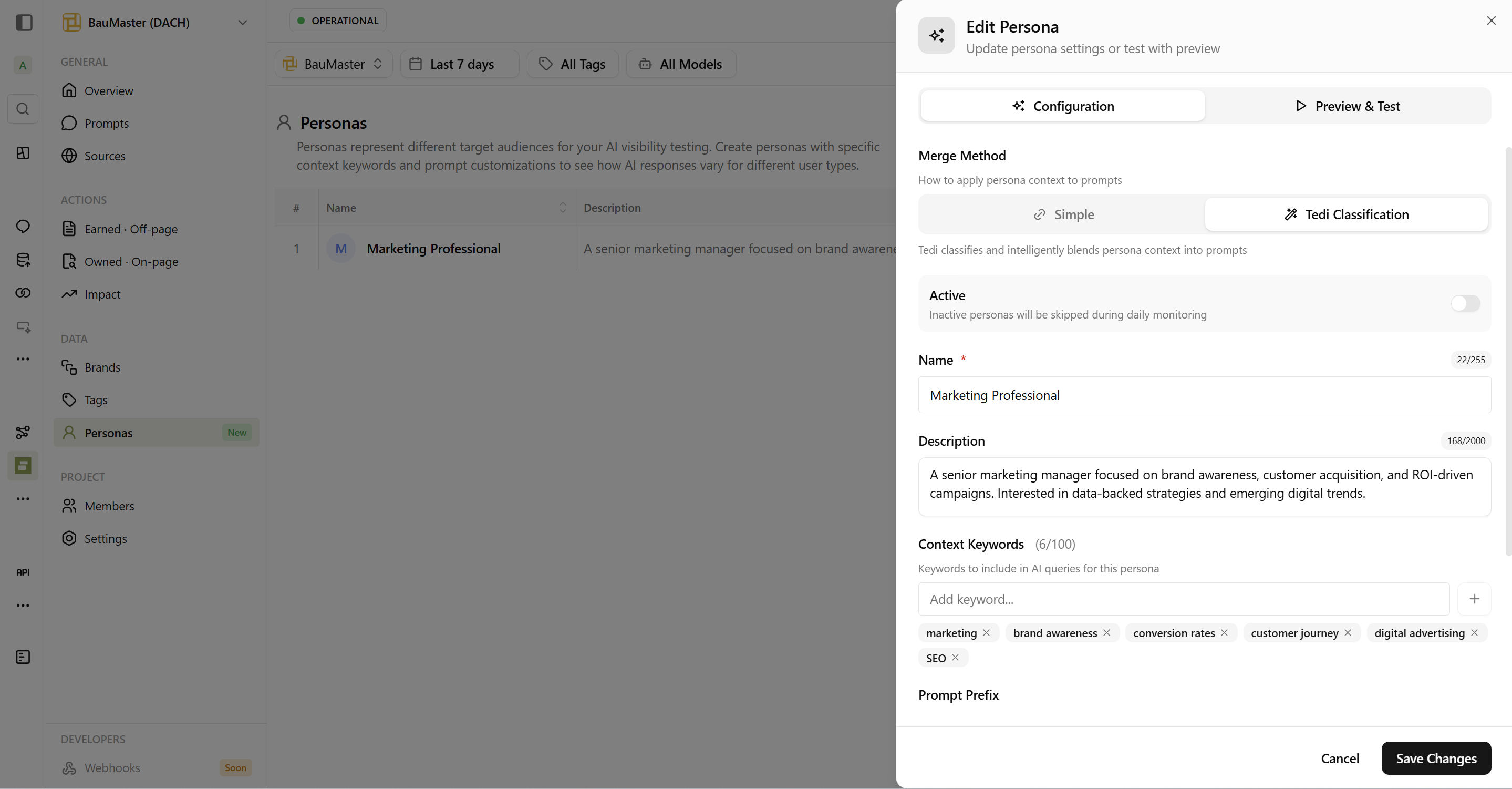
Configuration Options
When creating or editing a persona, you can configure:| Field | Description |
|---|---|
| Name | Display name for the persona (e.g., “Marketing Professional”) |
| Description | Detailed description of who this persona represents |
| Context Keywords | Keywords that help Tedi understand the persona’s focus areas |
| Prompt Prefix | Text added before your prompt when this persona is active |
| Prompt Suffix | Text added after your prompt for additional context |
| Active | Toggle to enable/disable the persona for daily monitoring |
All these fields are important - define them clearly to get the best results. The more specific and detailed your persona configuration, the more accurately AI will tailor its responses to that user type.
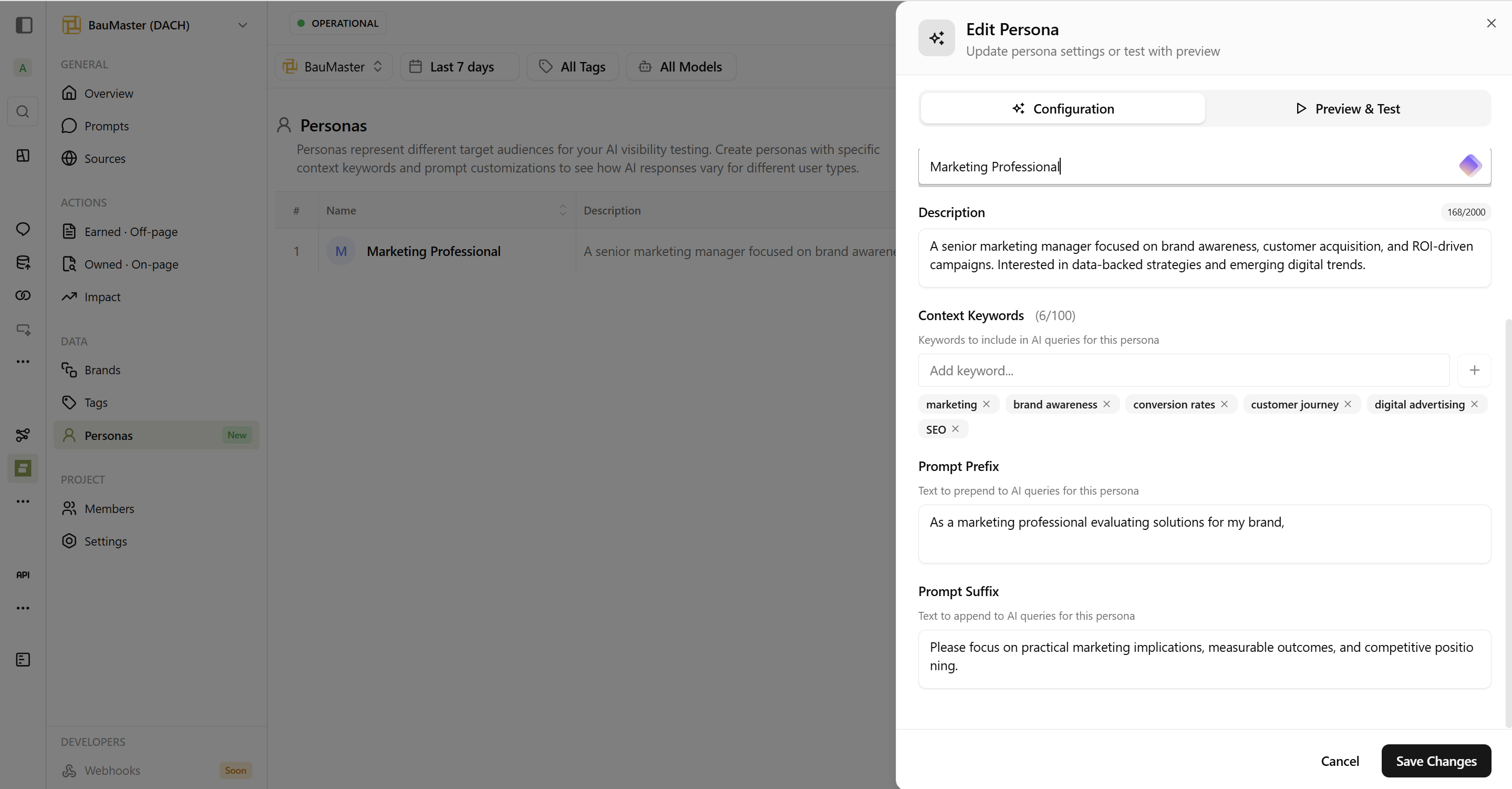
Context Keywords
Add keywords that represent your persona’s interests and focus areas. These help Tedi intelligently incorporate the persona context into prompts. Example for Marketing Professional:- marketing
- brand awareness
- conversion rates
- customer journey
- digital advertising
- SEO
Prompt Prefix & Suffix
For more control, you can set custom text that wraps around your prompts:| Setting | Example |
|---|---|
| Prefix | ”As a marketing professional evaluating solutions for my brand,“ |
| Suffix | ”Please focus on practical marketing implications, measurable outcomes, and competitive positioning.” |
Example Personas
| Persona Name | Description |
|---|---|
| Small Business Owner | Small business owner with limited budget, team of 10, not very technical |
| Enterprise IT Director | IT director evaluating solutions for 500+ users, security-focused |
| Startup Founder | Bootstrapped startup founder, needs simple and affordable solutions |
| Marketing Professional | Senior marketing manager focused on brand awareness, customer acquisition, and ROI-driven campaigns |
Merge Methods
When creating a persona, you choose how the persona context combines with your prompts:Simple
Uses your Prompt Prefix and Suffix directly. Fast and predictable.
Tedi Classification (Recommended)
Tedi intelligently blends persona context into your prompts naturally.
Simple Merge
The persona prefix and suffix are added exactly as you defined them.How Simple Merge Works
How Simple Merge Works
Original Prompt: “What are the benefits of using AI chatbots?”
Prefix: “As a marketing professional evaluating solutions for my brand,“
Suffix: “Please focus on practical marketing implications.”Result: “As a marketing professional evaluating solutions for my brand, what are the benefits of using AI chatbots? Please focus on practical marketing implications.”
Prefix: “As a marketing professional evaluating solutions for my brand,“
Suffix: “Please focus on practical marketing implications.”Result: “As a marketing professional evaluating solutions for my brand, what are the benefits of using AI chatbots? Please focus on practical marketing implications.”
Tedi Classification
Tedi classifies and intelligently blends persona context into your prompts, making them sound natural.How Tedi Classification Works
How Tedi Classification Works
Original Prompt: “What are the benefits of using AI chatbots?”
Persona: Marketing Professional with keywords: marketing, brand awareness, conversion ratesResult: “As a marketing professional evaluating solutions for my brand, what are the benefits of using AI chatbots in terms of brand awareness and conversion rates?”
Persona: Marketing Professional with keywords: marketing, brand awareness, conversion ratesResult: “As a marketing professional evaluating solutions for my brand, what are the benefits of using AI chatbots in terms of brand awareness and conversion rates?”
Comparison
| Feature | Simple | Tedi Classification |
|---|---|---|
| Speed | Instant | 100ms ~ 200ms |
| Format | Prefix + Prompt + Suffix | Intelligently merged |
| Best for | Precise control | Natural flow |
| Uses | Prefix & Suffix only | Keywords, Description & more |
Preview & Test Before Activating
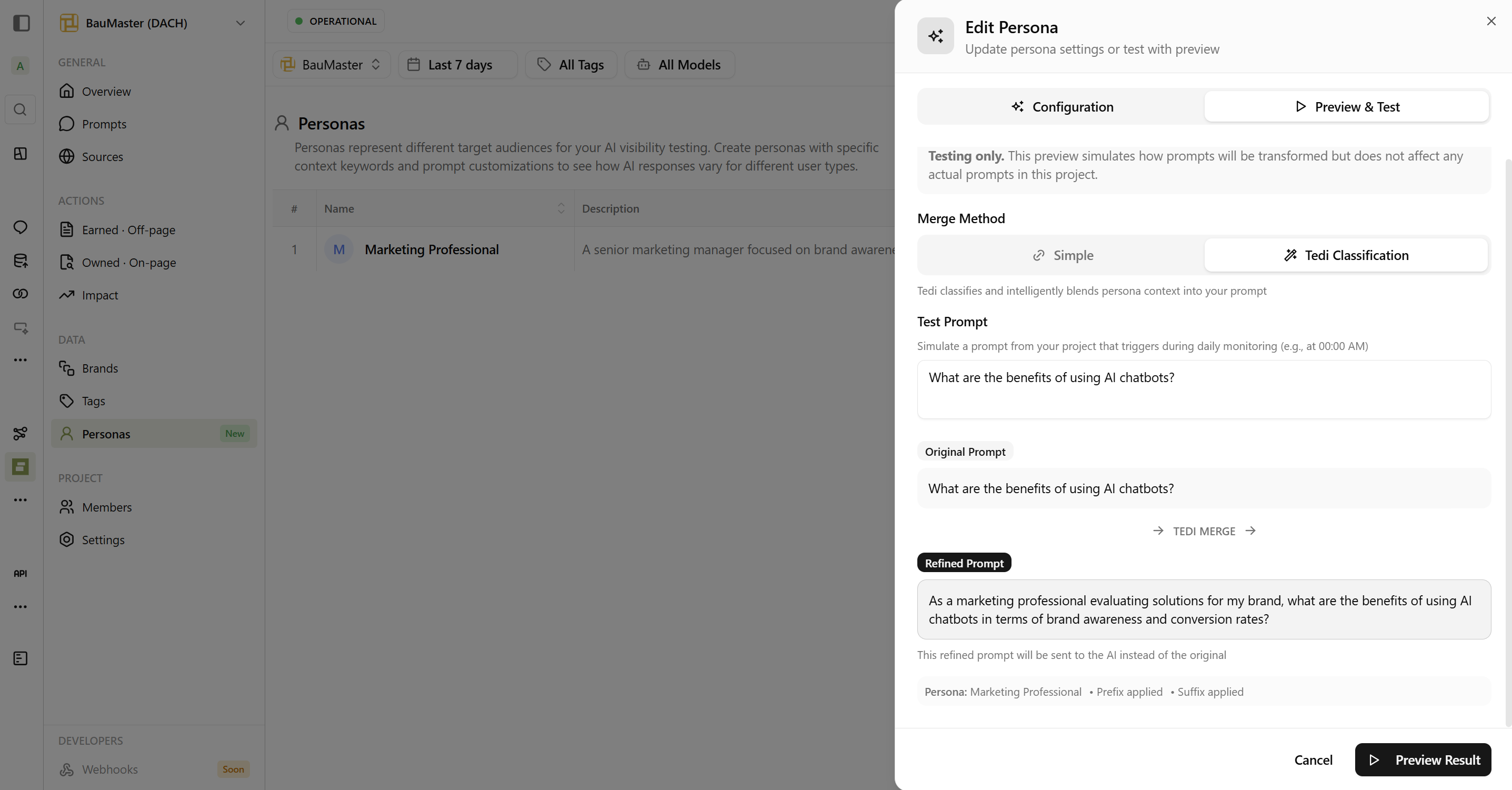
How to Test Your Persona
Enter a Test Prompt
Type any prompt you want to test (e.g., “What are the benefits of using AI chatbots?”)
See the Transformation
View how your Original Prompt transforms into the Refined Prompt that will be sent to AI
What You’ll See
The preview shows you the complete transformation flow:| Section | Description |
|---|---|
| Original Prompt | Your test prompt as you typed it |
| TEDI MERGE | The transformation process |
| Refined Prompt | The final prompt that will be sent to AI platforms |
Testing only. The preview simulates how prompts will be transformed but does not affect any actual prompts in your project. Feel free to experiment!
Test Different Scenarios
Before activating a persona, test with various prompts to ensure:- The persona context is applied correctly
- The refined prompts still make sense
- Keywords are incorporated naturally (if using Tedi Classification)
Viewing Persona Results
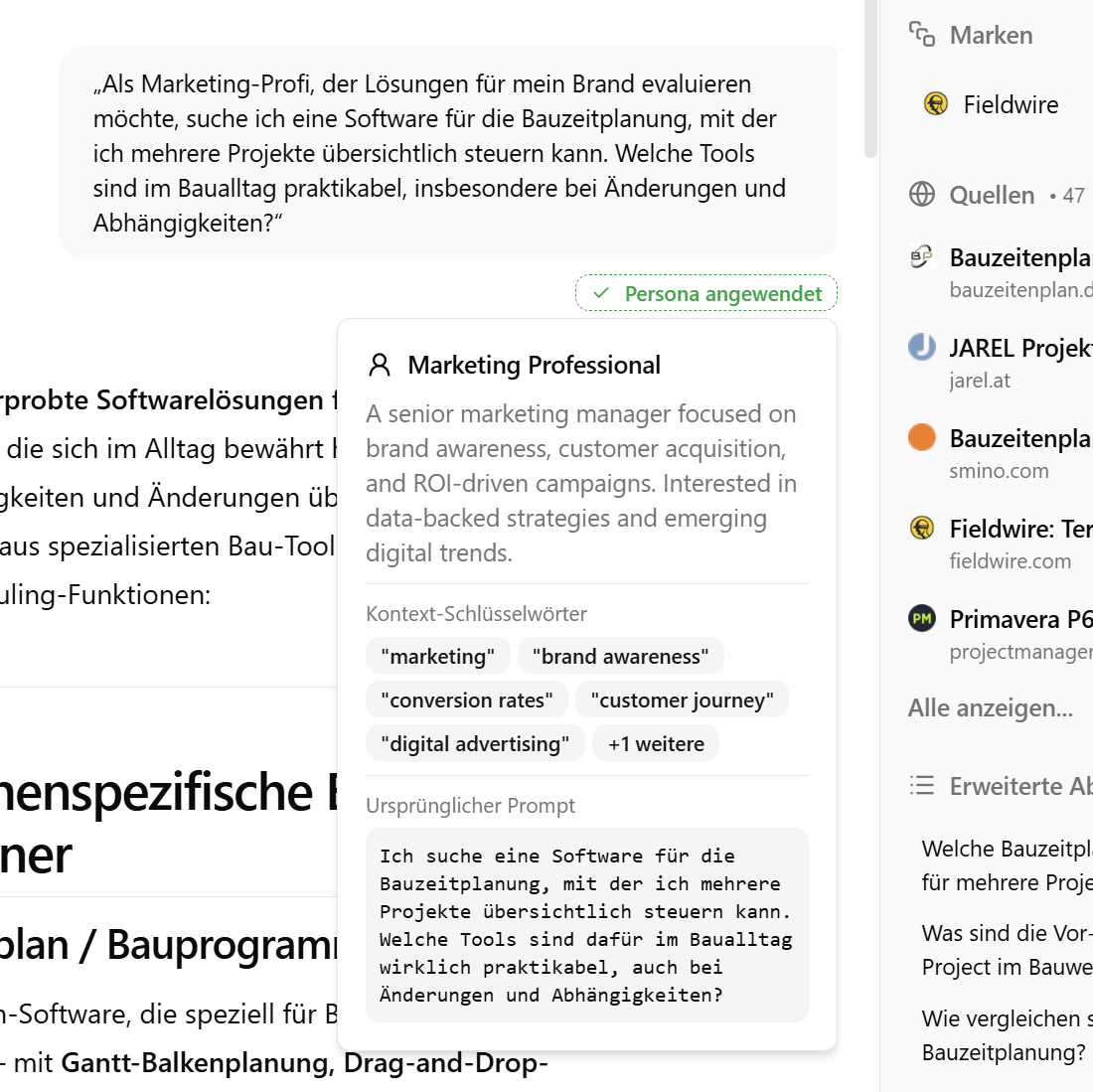
In your dashboard, you can:- Filter by persona - See results for specific user types
- Compare personas - View side-by-side visibility across personas
- See executed prompts - Review exactly what was sent to AI
Best Practices
Choosing Personas
Use Real Customer Segments
Base personas on your actual target customers. Random personas won’t give useful insights.
Start Small
Begin with 2-3 personas representing your most important customer segments.
Be Specific
“Marketing manager at 50-person SaaS company” is better than just “marketer”
Think About Differences
Choose personas that might get different recommendations from AI
Persona Ideas by Industry
B2B Software
B2B Software
- Small business owner (1-10 employees)
- Mid-market IT manager (50-200 employees)
- Enterprise CTO (500+ employees)
- Startup founder (bootstrapped)
E-commerce
E-commerce
- First-time shopper
- Budget-conscious consumer
- Premium buyer
- Business buyer
Professional Services
Professional Services
- Individual practitioner
- Small firm partner
- Enterprise decision-maker
Frequently Asked Questions
How many personas can I have?
How many personas can I have?
During the beta period, each project is limited to 5 active personas. This may increase with time.
Do personas affect all prompts?
Do personas affect all prompts?
Yes. When you add a persona to a project, it applies to every prompt in that project. e.g: if you have 2 personas, each prompt will be sent twice - once with each persona context.
Can I see what was sent to AI?
Can I see what was sent to AI?
Yes! Check the “Executed Prompt” field in chat details to see exactly what was sent.
When should I NOT use personas?
When should I NOT use personas?
If your customers are very homogeneous, or if you’re just starting out, you might not need personas. Get your basic prompts working first.