
Documentation Index
Fetch the complete documentation index at: https://docs.evergreens.ai/llms.txt
Use this file to discover all available pages before exploring further.

Overview
Share projects with your team to collaborate on AI visibility monitoring. Team members can view data, manage prompts, or administer the project depending on their role.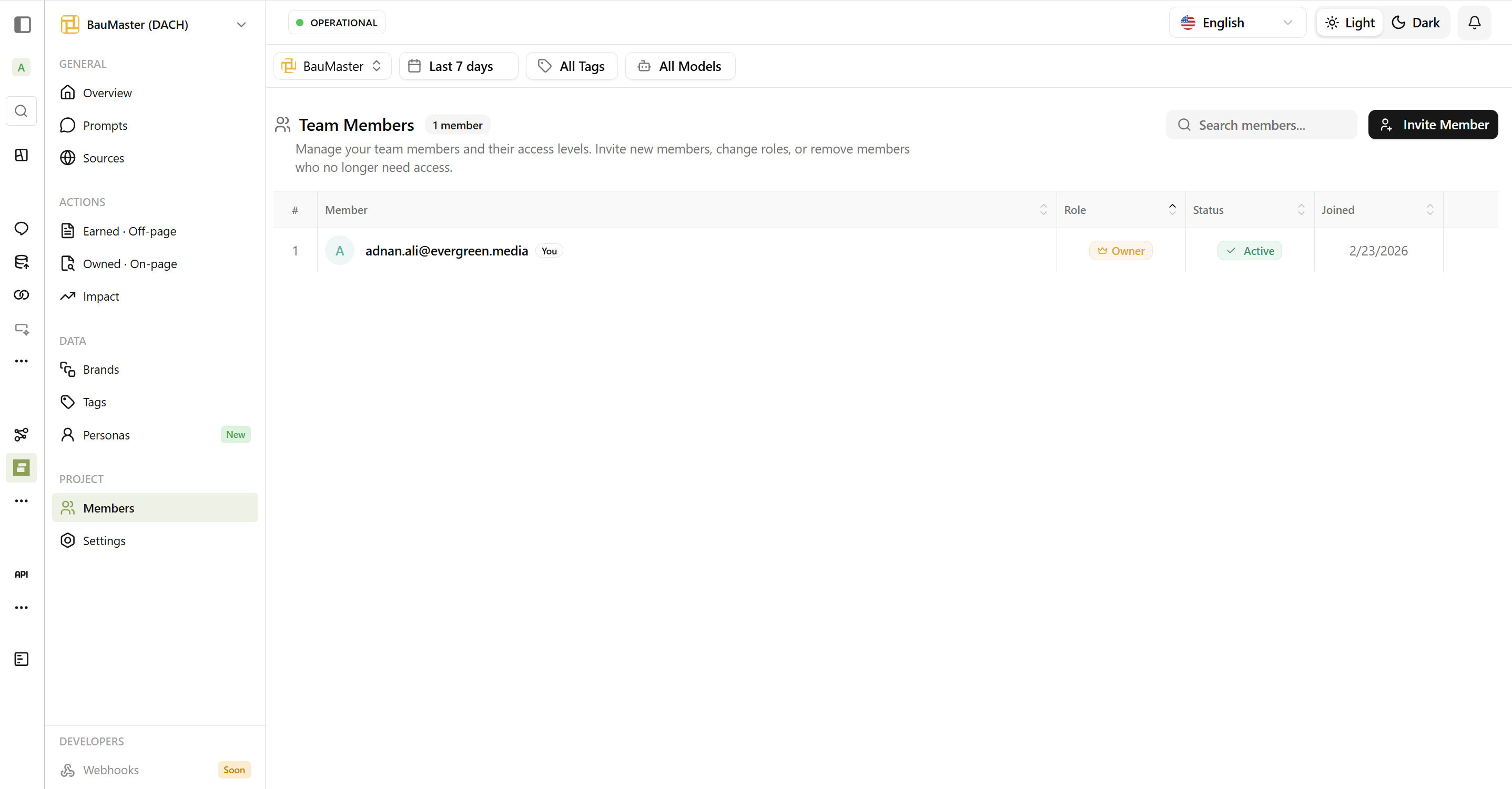
Member Roles
AI Brand Monitor has three roles with different permission levels:| Permission | Owner | Admin | Viewer |
|---|---|---|---|
| View all data | ✅ | ✅ | ✅ |
| Manage prompts, brands, topics, tags | ✅ | ✅ | ❌ |
| Manage personas | ✅ | ✅ | ❌ |
| Invite and remove members | ✅ | ✅ | ❌ |
| Change member roles | ✅ | ✅ | ❌ |
| Delete project | ✅ | ❌ | ❌ |
| Transfer ownership | ✅ | ❌ | ❌ |
Owner
Owner
The person who created the project. Has full control over everything including project deletion and ownership transfer. Each project has exactly one owner.
Admin
Admin
Full project access including team management. Can do everything except delete the project or transfer ownership. Best for: Content managers, SEO specialists, team leads.
Viewer
Viewer
Read-only access to all project data. Cannot create, edit, or delete anything. Best for: Executives, stakeholders, clients, external reviewers.
Managing Team Members
Inviting Members
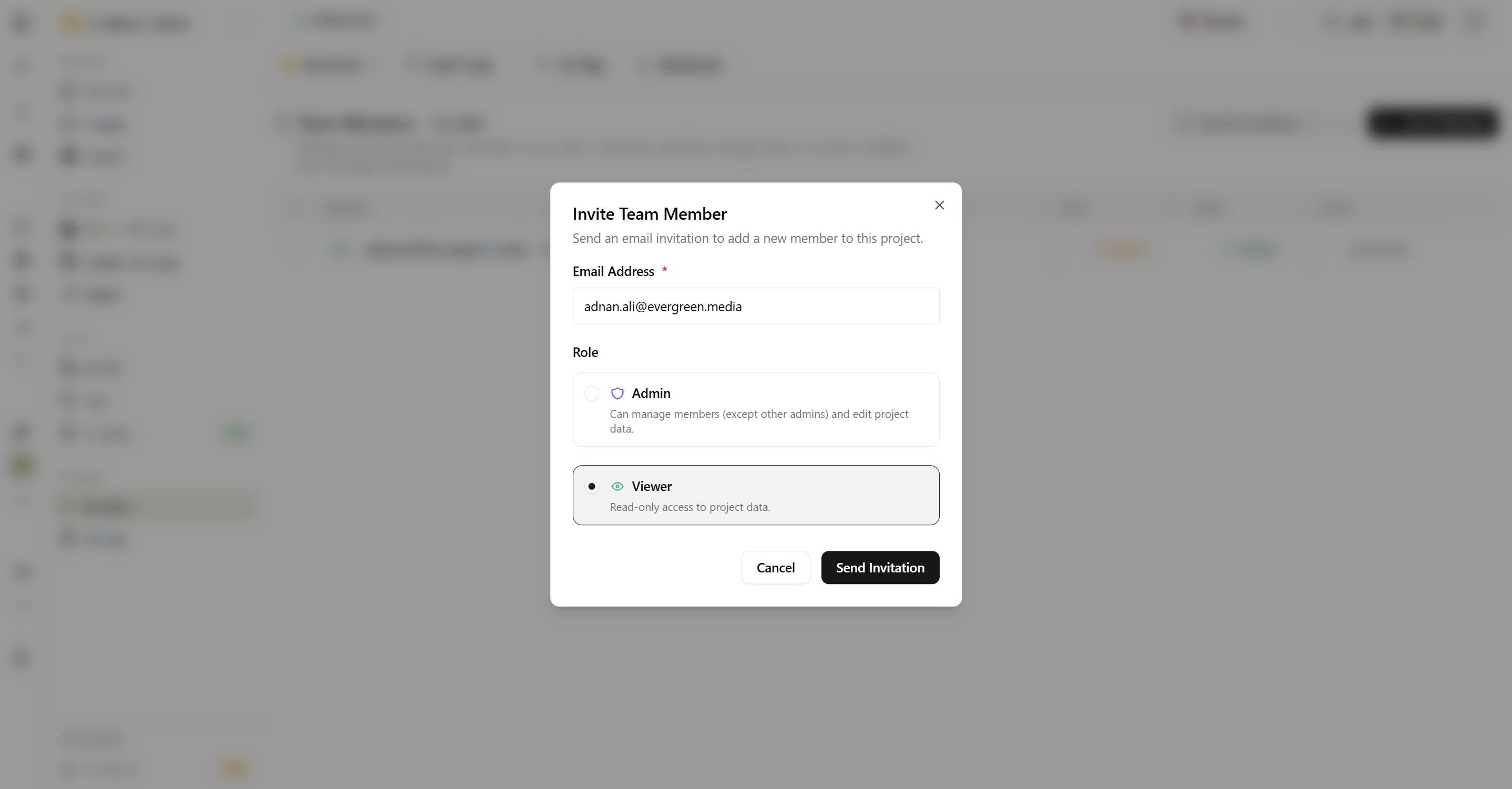
Pending Invitations
Invited members show as “Pending” until they:- Click the invitation link
- Create an account (if new to AI Brand Monitor)
- Accept the invitation
- Resend - Send another email if they didn’t receive it
- Revoke - Cancel the invitation before they accept
Changing Roles
As the owner, you can change member roles:Removing Members
To remove a team member:Removed members:
- Lose access immediately
- Can be re-invited later
- Keep their own AI Brand Monitor account
Transferring Ownership
If you need to transfer project ownership to someone else:
What happens:
- They become the Owner
- You become an Admin
- All data remains unchanged
Leaving a Project
If you’re a member (not owner) and want to leave:If you’re the owner, you must transfer ownership before you can leave.
Best Practices
Start with Viewers
Give new team members Viewer access first. Upgrade to Editor once they’re familiar with the project.
Limit Admins
Too many admins can lead to conflicting changes. Keep the admin team small and coordinated.
Document Roles
Make it clear who’s responsible for what - prompt creation, analysis, reporting, etc.
Regular Review
Periodically review team members and remove anyone who no longer needs access.
Common Scenarios
Agency managing client projects
Agency managing client projects
- Create the project as your agency account (Owner)
- Add client stakeholders as Viewers
- Add your team members as Admins
- Optionally transfer ownership to client when engagement ends
Internal marketing team
Internal marketing team
- Marketing lead creates project (Owner)
- Content team members get Admin access
- Executives and stakeholders get Viewer access
Consultant working with client
Consultant working with client
- Client creates project (Owner)
- Consultant gets Admin access
- Consultant can make changes but client controls the project
Frequently Asked Questions
Can I be a member of multiple projects?
Can I be a member of multiple projects?
Yes! You can be a member of as many projects as needed, with different roles in each.
What happens to my data if I'm removed?
What happens to my data if I'm removed?
Project data stays with the project. You lose access, but nothing is deleted.
Can Viewers see all data?
Can Viewers see all data?
Yes, Viewers can see everything - prompts, chats, sources, actions, metrics. They just can’t make changes.
Is there a limit on team members?
Is there a limit on team members?
No limit! Add as many team members as you need.